
关于Windows的powershell黑屏感觉很难看,所以专门美化了一下
不过还有其他更美观的方法,比如在终端塞一个ascII二次元娘和系统配置啥的
下载软件
去微软商店搜Windows Terminal和oh-my-posh下载和更新比较方便
下载Windows Terminal
也可以通过widget安装
# 下载
winget install --id Microsoft.WindowsTerminal -exact

# 更新
winget upgrade --id Microsoft.WindowsTerminal -exact
其中Windows Terminal是可以统一管理多种命令行环境的窗口
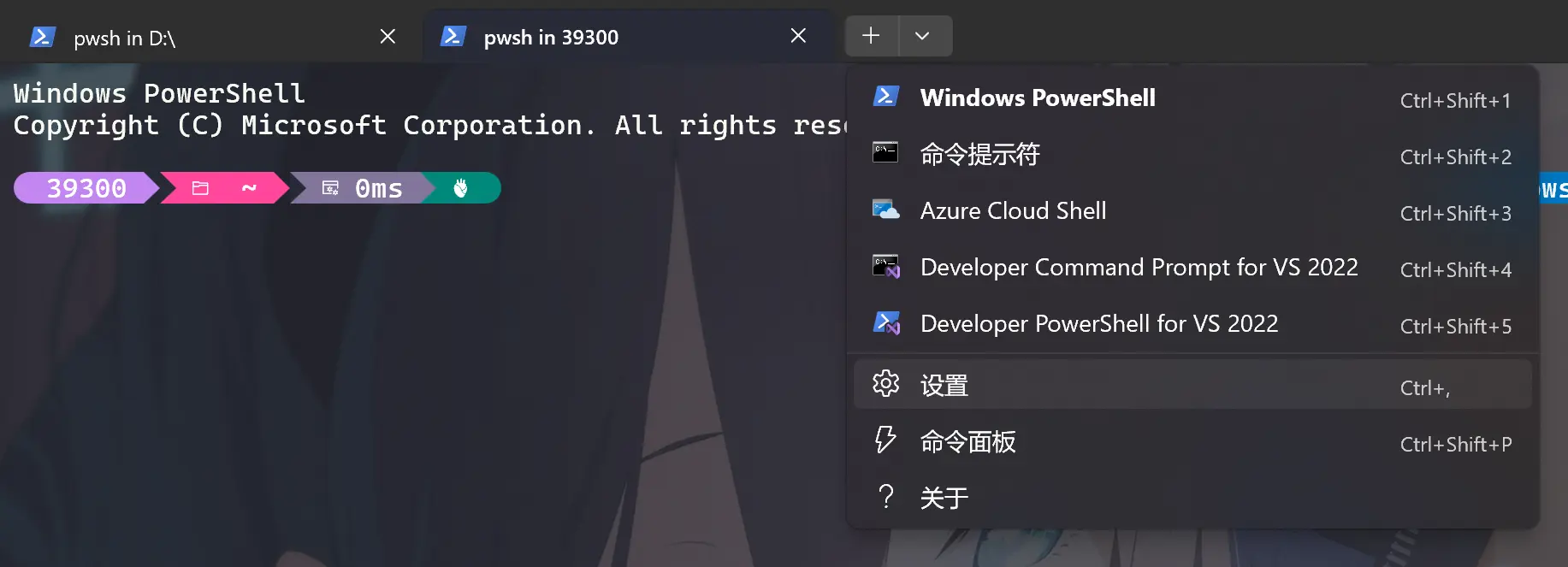
我们可以自定义添加一些终端预设例如git bash
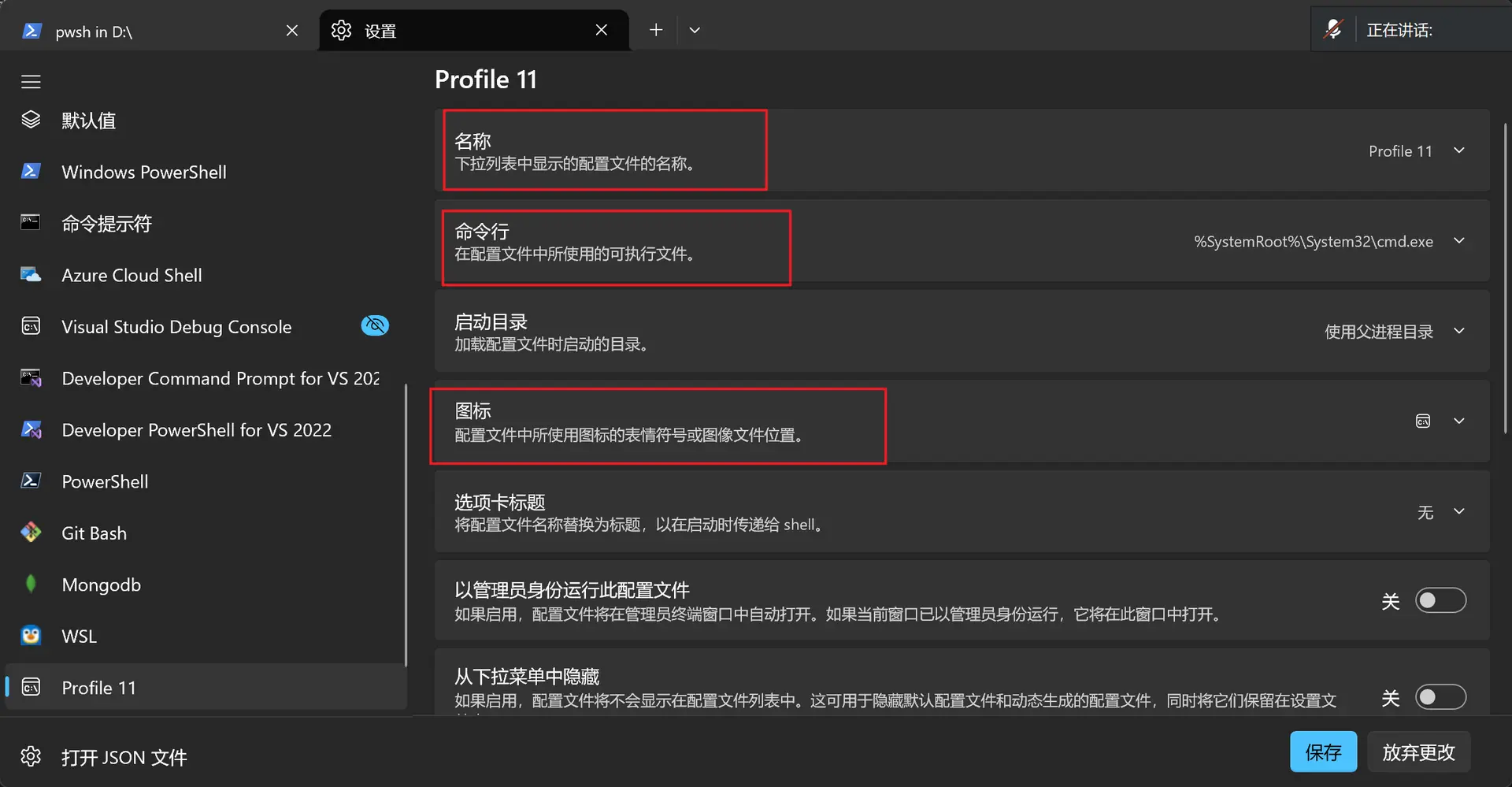
也可以通过widget安装oh my posh,默认主题是JanDeDobbeleer
# 下载
winget install JanDeDobbeleer.OhMyPosh --source winget

# 更新
winget upgrade JanDeDobbeleer.OhMyPosh
下载Cascadia Code NF字体
选择这个Cascadia Code NF字体安装到系统字体
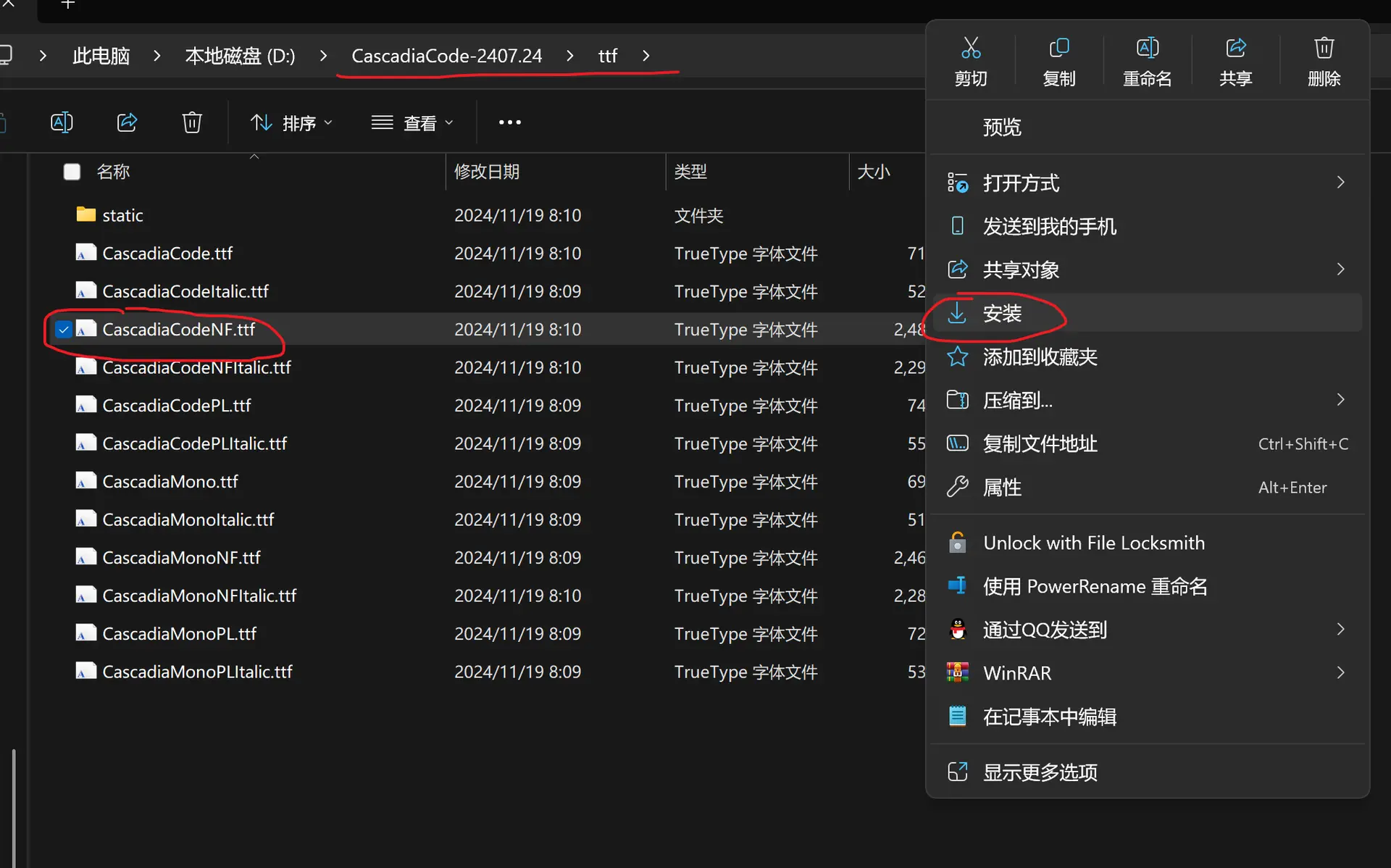
当然你也可以去Nerd Font官网下载其他你喜欢的 Nerd Font 字体
下载powershell 7
# 安裝
winget install --id Microsoft.Powershell --source winget

# 更新
winget upgrade --id Microsoft.Powershell
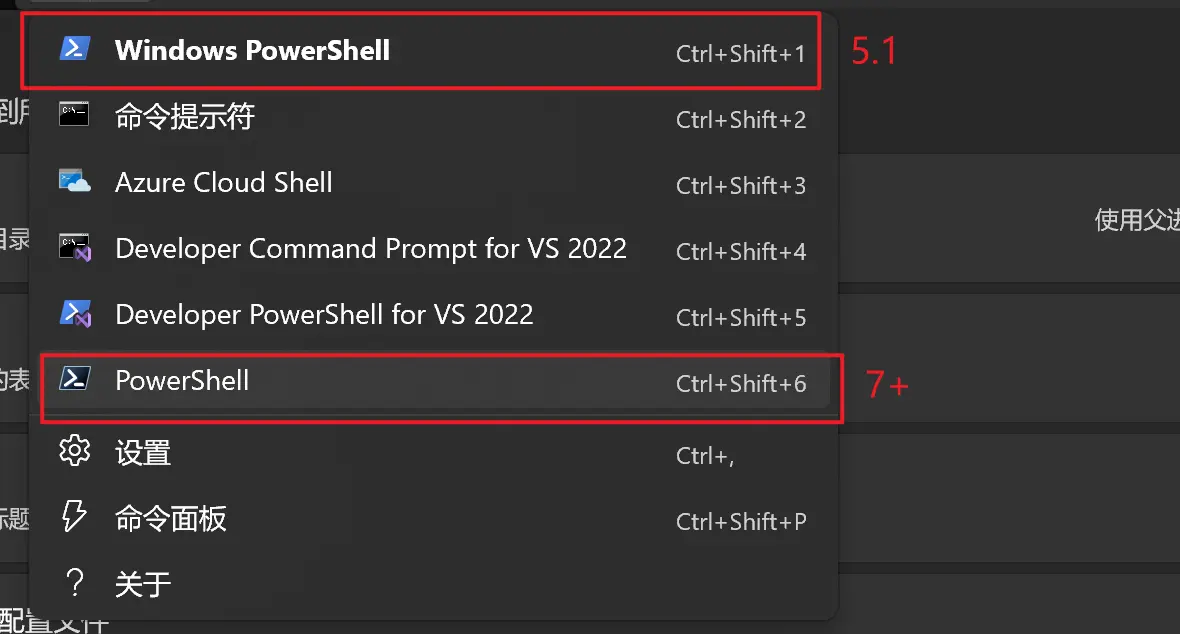
也可以把这个作为Windows默认终端
或者我们用默认的5.1 ,然后通过pwsh打开7
注意
- powershell命令启动的是5.1
- pwsh命令启动的是7+
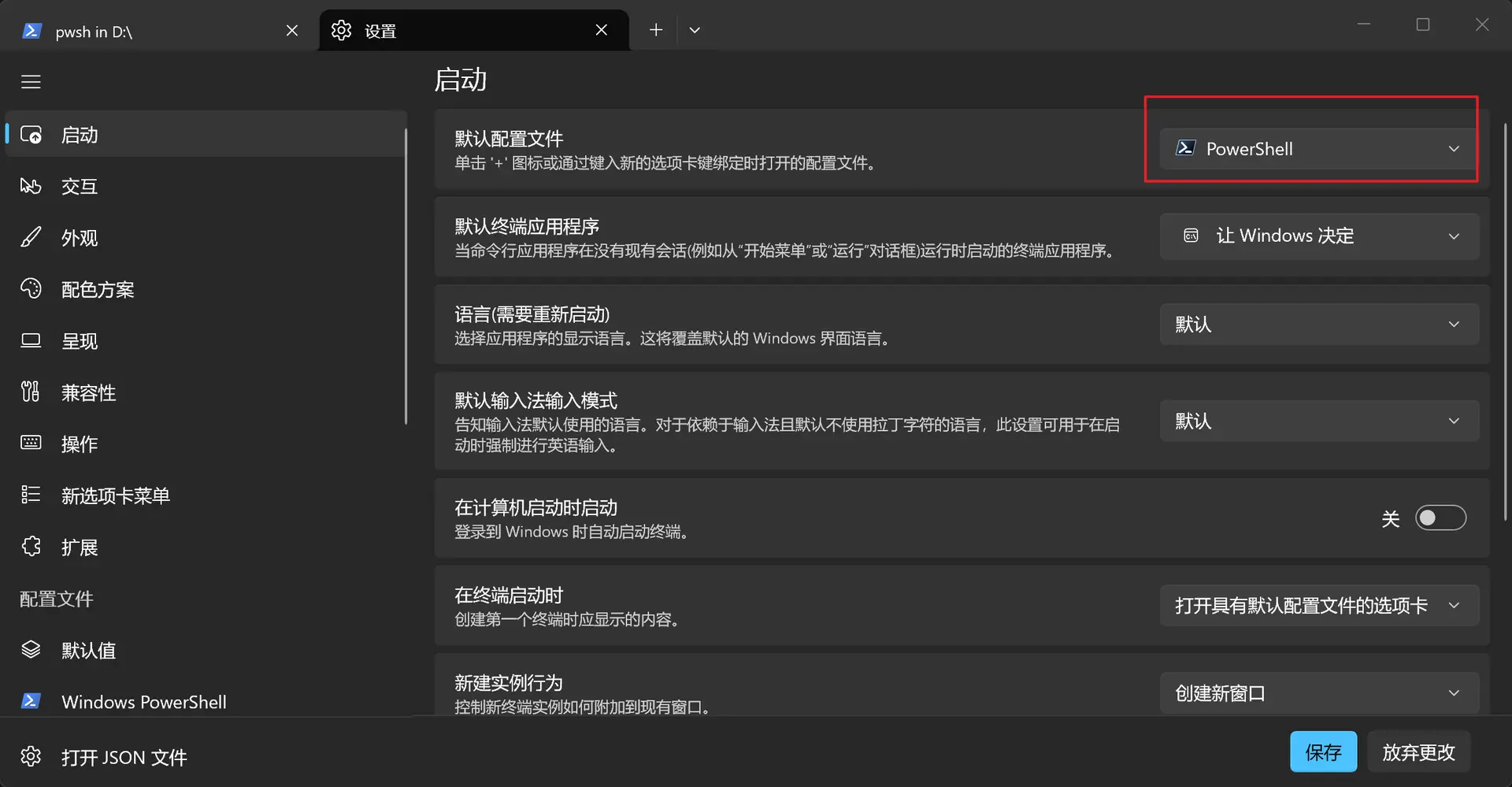
移除终端欢迎语
默认的powershell有
Windows PowerShell
Copyright (C) Microsoft Corporation. All rights reserved.
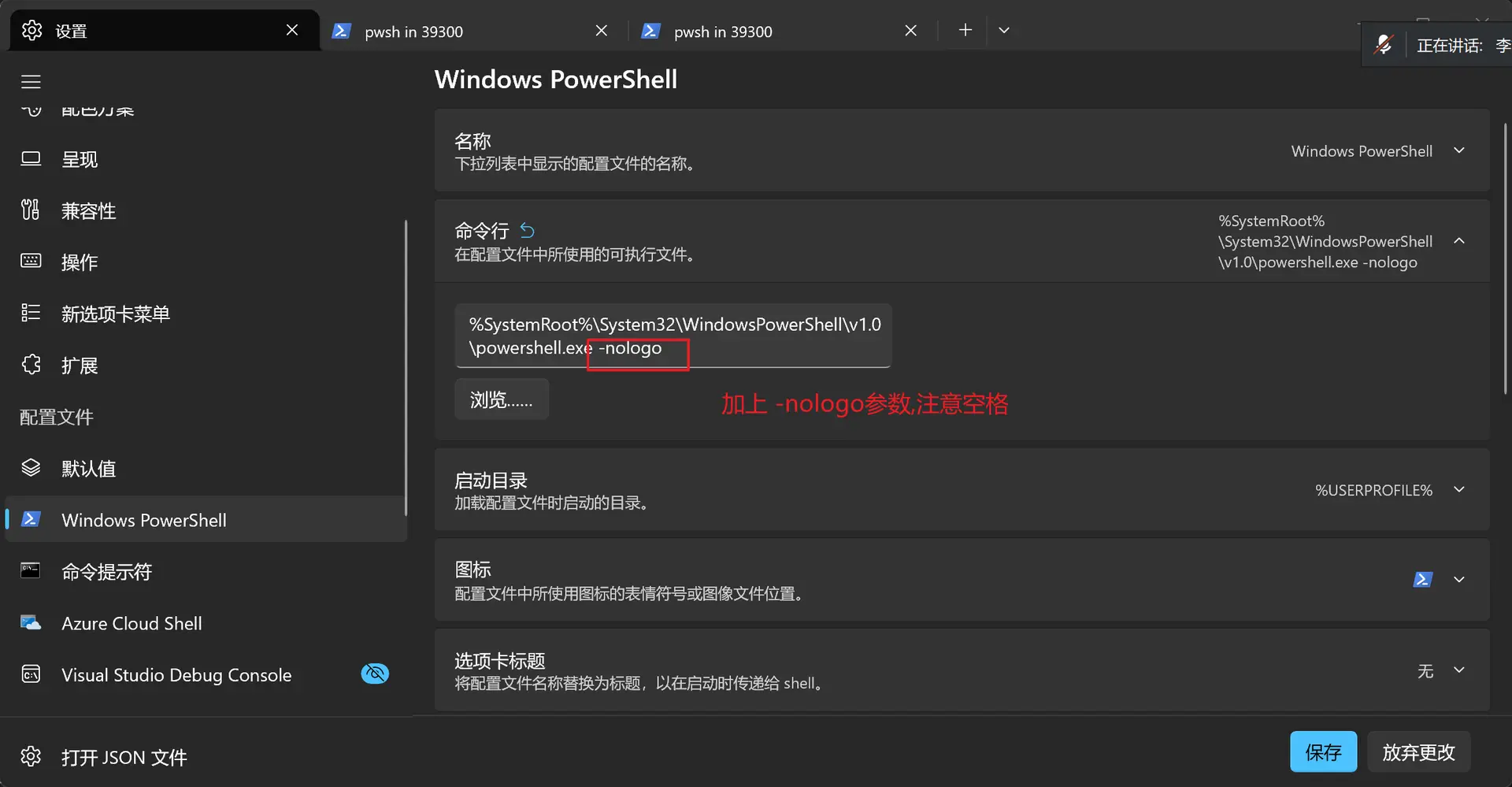
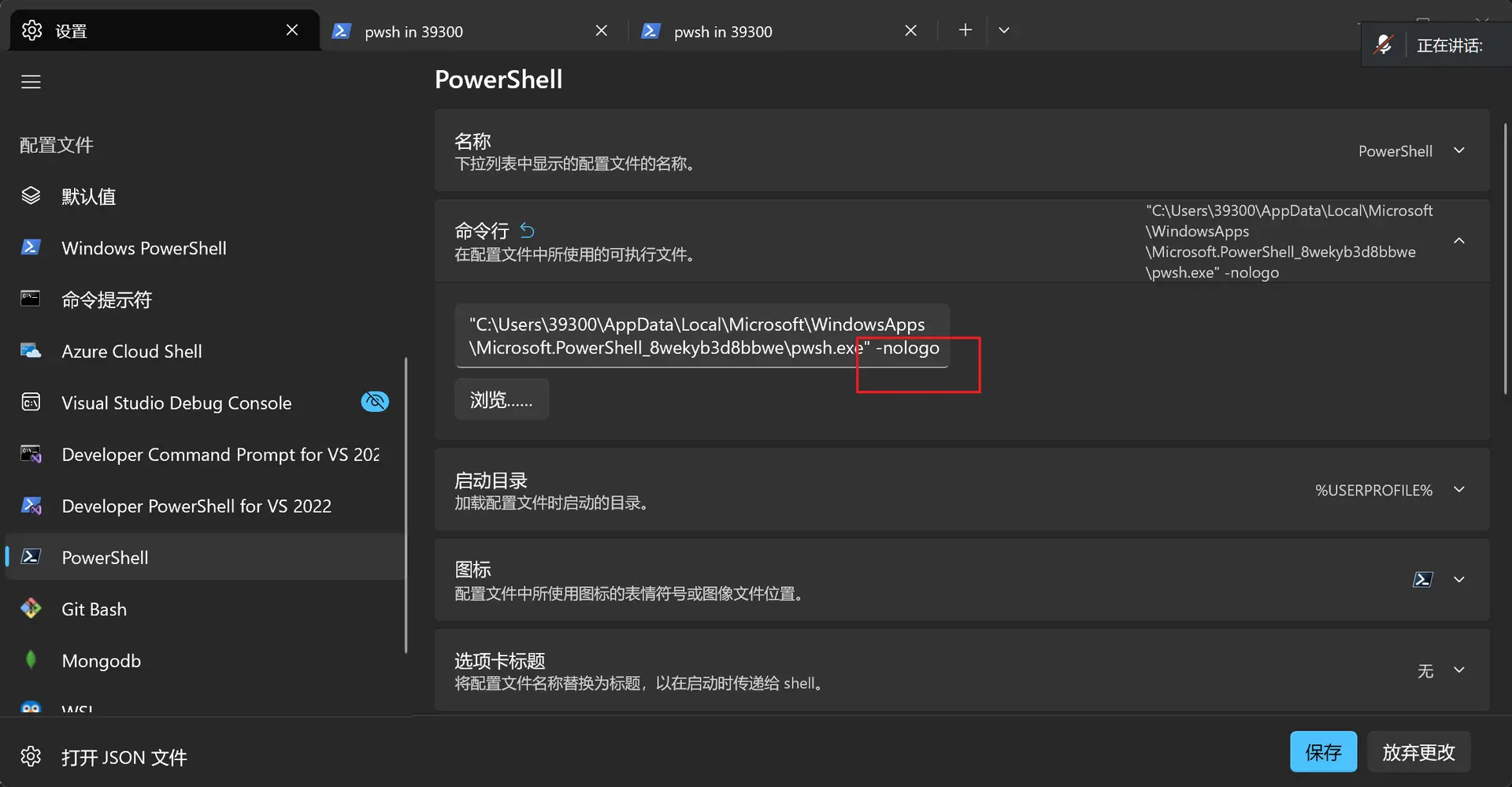
这句话,不喜欢的话可以使用-nologo参数移除
gsudo获得管理员权限
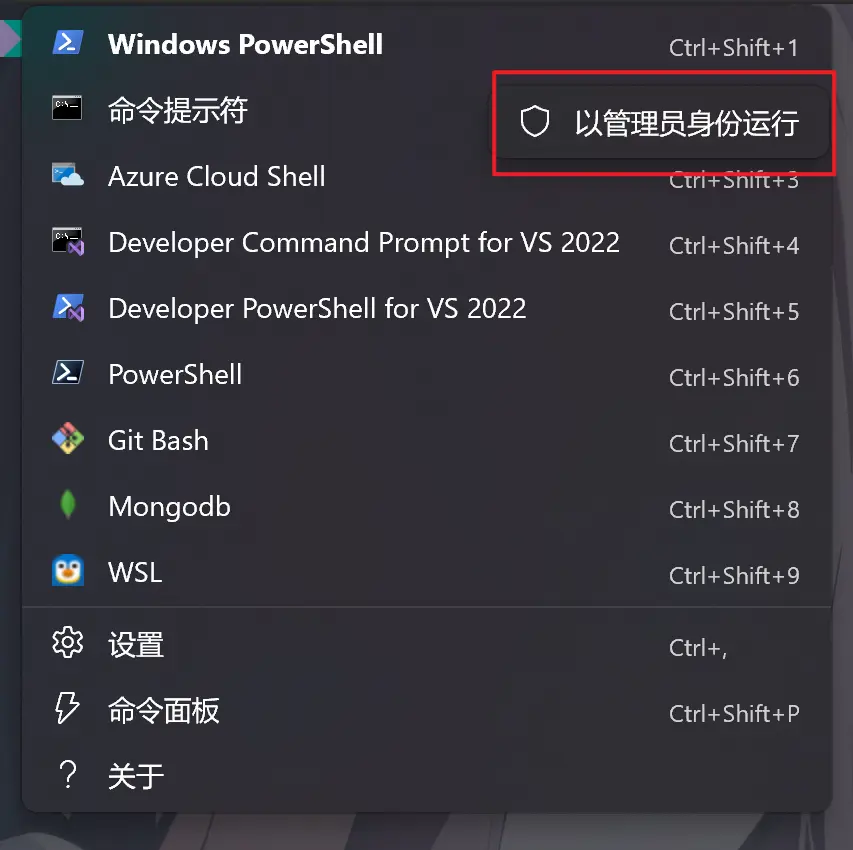
通常我们需要这样获得管理员权限
# 安裝
winget install --id gerardog.gsudo --exact --source winget

# 更新
winget upgrade --id gerardog.gsudo --exact --source winget
若你习惯liunx的sudo也可以配置别名
在powershell执行如下命令在配置文件添加Set-Alias sudo gsudo
# 判断是否有profile配置没有就创建
if (!(Test-Path $PROFILE)) {
    New-Item -Path $PROFILE -ItemType File -Force | Out-Null
}

# 在里面添加Set-Alias sudo gsudo
if (!(Select-String -Path $PROFILE -Pattern 'Set-Alias sudo gsudo' -Quiet)) {
    Add-Content -Path $PROFILE -Value "`nSet-Alias sudo gsudo"
}

# 查看配置文件路径
. $PROFILE
配置终端外观
我们可以在json文件设置主题,这里使用德古拉吸血鬼主题配色
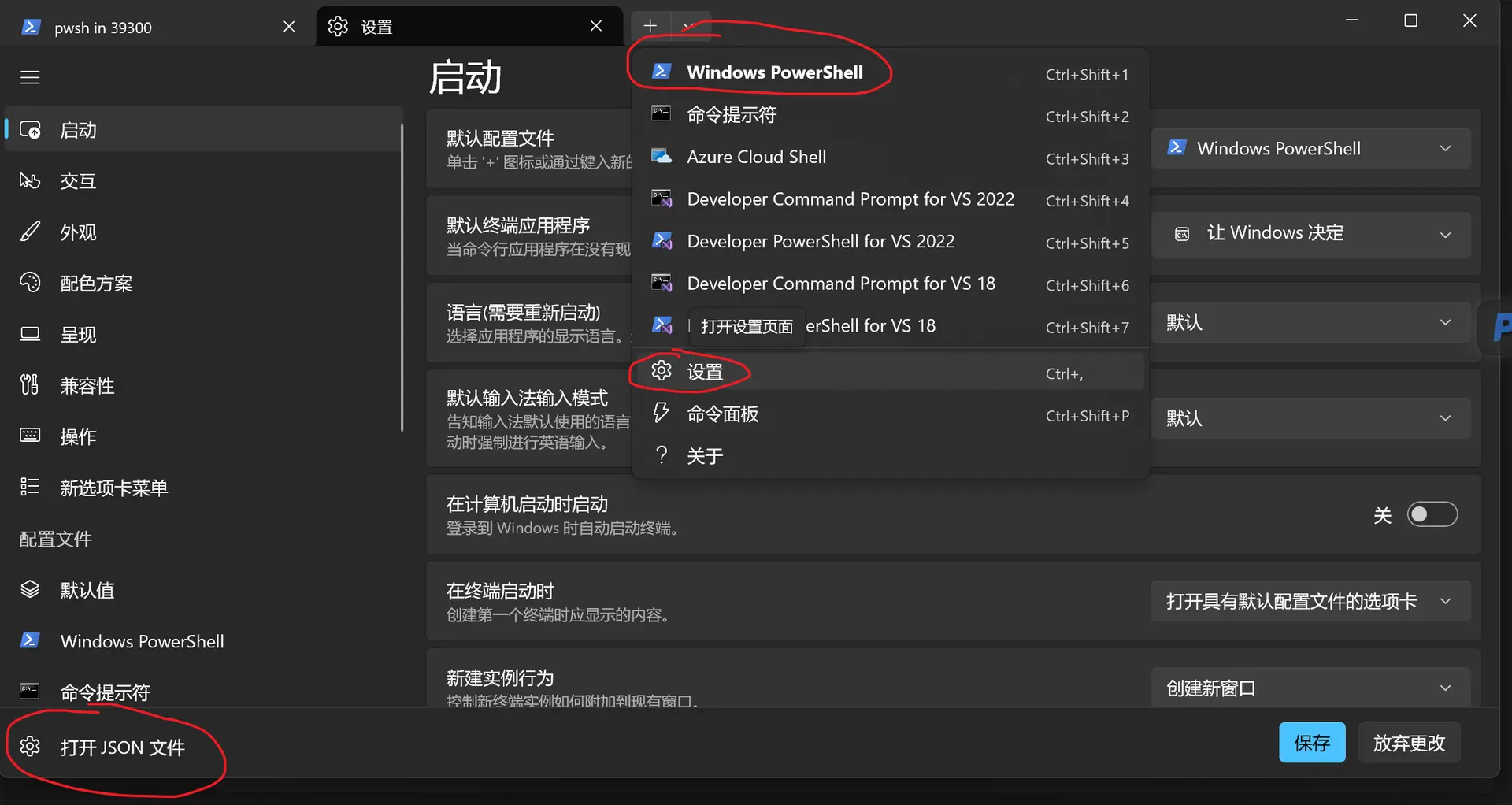
打开json后找到并更改两个地方
//第一个地方
"profiles": {
    "defaults": {
      "font": {
        "face": "Cascadia Code NF",  // 必须是你刚才安装的 Nerd Font 字体名
        "size": 12
      },
      "useAcrylic": true,            // 开启毛玻璃半透明效果
      "acrylicOpacity": 0.85,        // 整体窗口的透明度
      "colorScheme": "Dracula",      // 使用经典的吸血鬼深色主题

      // --- 背景图片设置(进阶) ---
      "backgroundImage": "D:\\HuaweiMoveData\\Users\\39300\\Pictures\\高清壁纸\\01.png", // 壁纸路径(注意用双斜杠 \\)
      "backgroundImageOpacity": 0.2,            // 壁纸透明度(调低点以免看不清代码)
      "backgroundImageStretchMode": "uniformToFill",
      "backgroundImageAlignment": "center"
    },
    // ... "list": [...] 保留原样
  },


//第二个地方
  "schemes": [
    {
      "name": "Dracula",
      "background": "#282A36",
      "foreground": "#F8F8F2",
      "cursorColor": "#F8F8F2",
      "selectionBackground": "#44475A",
      "black": "#21222C", "brightBlack": "#6272A4",
      "blue": "#BD93F9", "brightBlue": "#D6ACFF",
      "cyan": "#8BE9FD", "brightCyan": "#A4FFFF",
      "green": "#50FA7B", "brightGreen": "#69FF94",
      "purple": "#FF79C6", "brightPurple": "#FF92DF",
      "red": "#FF5555", "brightRed": "#FF6E6E",
      "white": "#F8F8F2", "brightWhite": "#FFFFFF",
      "yellow": "#F1FA8C", "brightYellow": "#FFFFA5"
    }
  ]
注意json的格式正确,壁纸请替换成实际图片路径
觉得麻烦和怕出错的话还可以自己在这里配置方案,然后调整参数
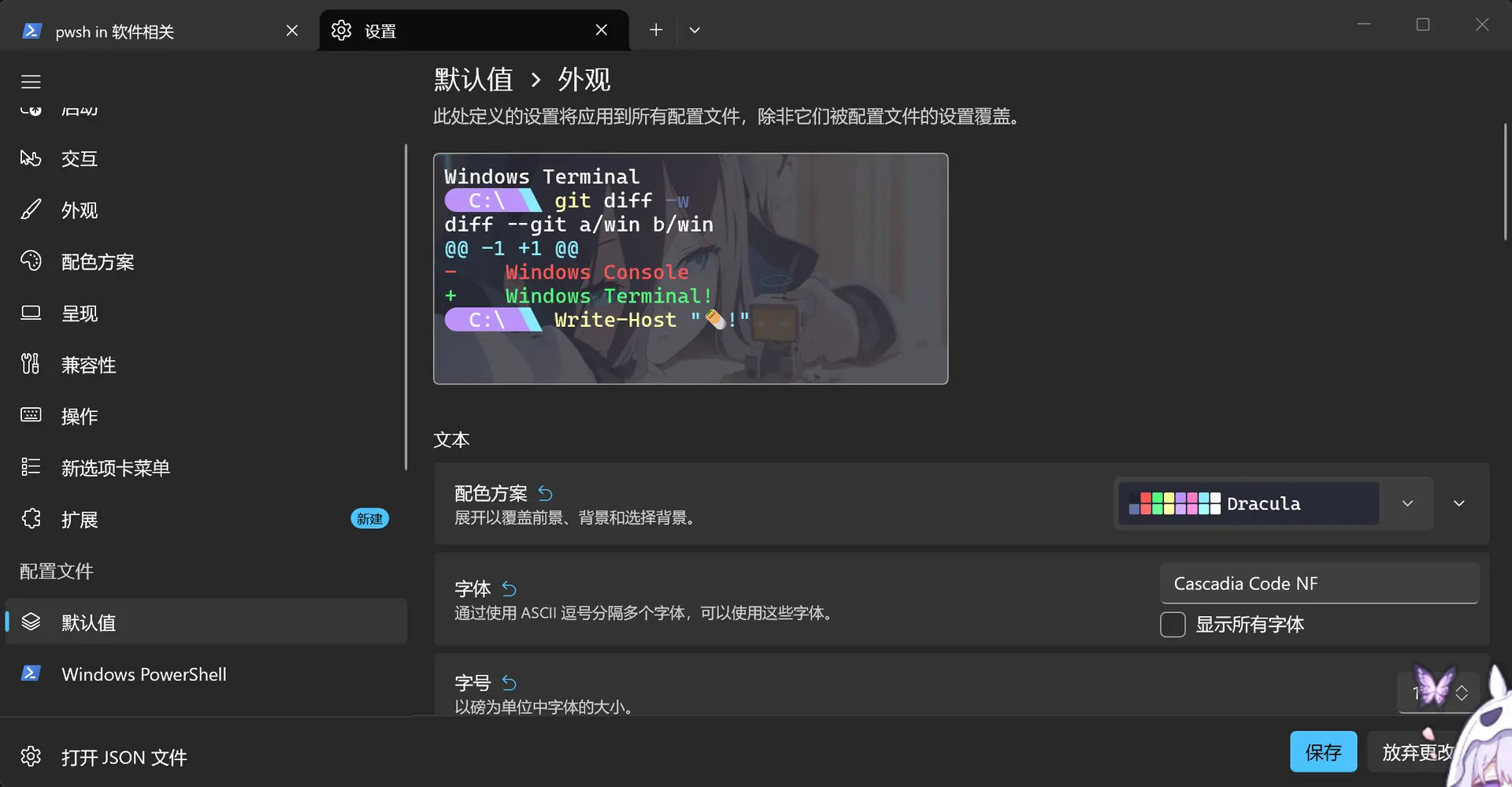
然后完成后退出重启终端,就可以看到界面变成这个样子
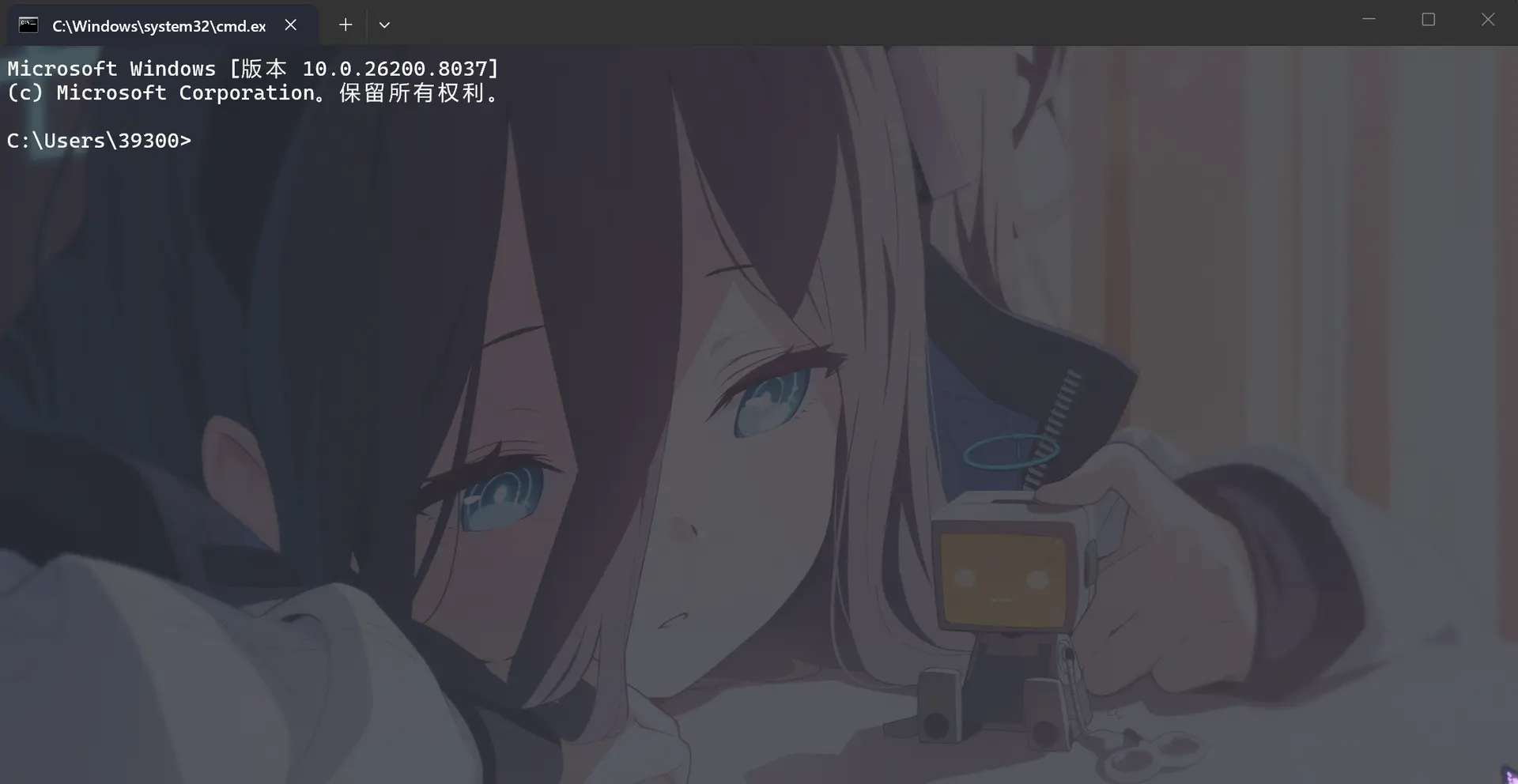
不过还不够,需要在powershell中启用oh my posh的主题(只能powershell,不能cmd)
powershell区分版本
powershell终端输入打开终端配置文件
# 查看目前使用的 Profile 路径
echo $PROFILE

# 检测配置文件是否存在(True = 已存在)
Test-Path $PROFILE

# 打开并编辑此文件
notepad $PROFILE
不过在此之前我们首先需要检测当前用的powershell版本号是多少
$PSVersionTable.PSVersion
检查已安装和当前加载的 PSReadLine
# 所有可用版本
Get-Module PSReadLine -ListAvailable |
    Select-Object Version, ModuleBase

# 当前实际加载的版本
Get-Module PSReadLine |
    Select-Object Version, ModuleBase
查看当前支持的选项和快捷键
Get-Command Set-PSReadLineOption -Syntax
Get-PSReadLineKeyHandler
我们需要区分一下Windows powershell5.1和powershell 7的profile配置文件
可以使用$PROFILE命令来查找此文件的路径
对于powershell 5.1
一般这个路径是在Users\用户名\Documents\PowerShell\Microsoft.PowerShell_profile.ps1
# 创建配置目录
New-Item -ItemType Directory -Path (Split-Path -Parent $PROFILE) -Force

# 创建 Profile 文件(若不存在)
if (-not (Test-Path $PROFILE)) {
    New-Item -ItemType File -Path $PROFILE -Force
}

# 查看实际路径
$PROFILE
对于powershell 7+
一般这个路径是在Users\用户名\Documents\WindowsPowerShell\Microsoft.PowerShell_profile.ps1
# 创建配置目录
New-Item -ItemType Directory -Path (Split-Path -Parent $PROFILE) -Force

# 创建 Profile 文件(若不存在)
if (-not (Test-Path $PROFILE)) {
    New-Item -ItemType File -Path $PROFILE -Force
}

# 查看实际路径
$PROFILE
配置oh my push到profile文件
在这上面两个profile.ps1文件里粘贴保存
# 初始化为默认主题即jandedobbeleer
oh-my-posh init pwsh | Invoke-Expression
或者使用规范的写法,方便我们替换成其他主题
# 引入 Oh My Posh 并使用默认主题
oh-my-posh init pwsh --config "$env:POSH_THEMES_PATH\jandedobbeleer.omp.json" | Invoke-Expression
当然jandedobbeleer只是其中一种主题,要是想要其他主题直接替换主题名称即可
我们可以直接查看当前一共有哪些主题
Get-ChildItem $env:POSH_THEMES_PATH -Recurse -Filter "*.omp.json"
你也可以前往oh my posh官网预览并选择主题
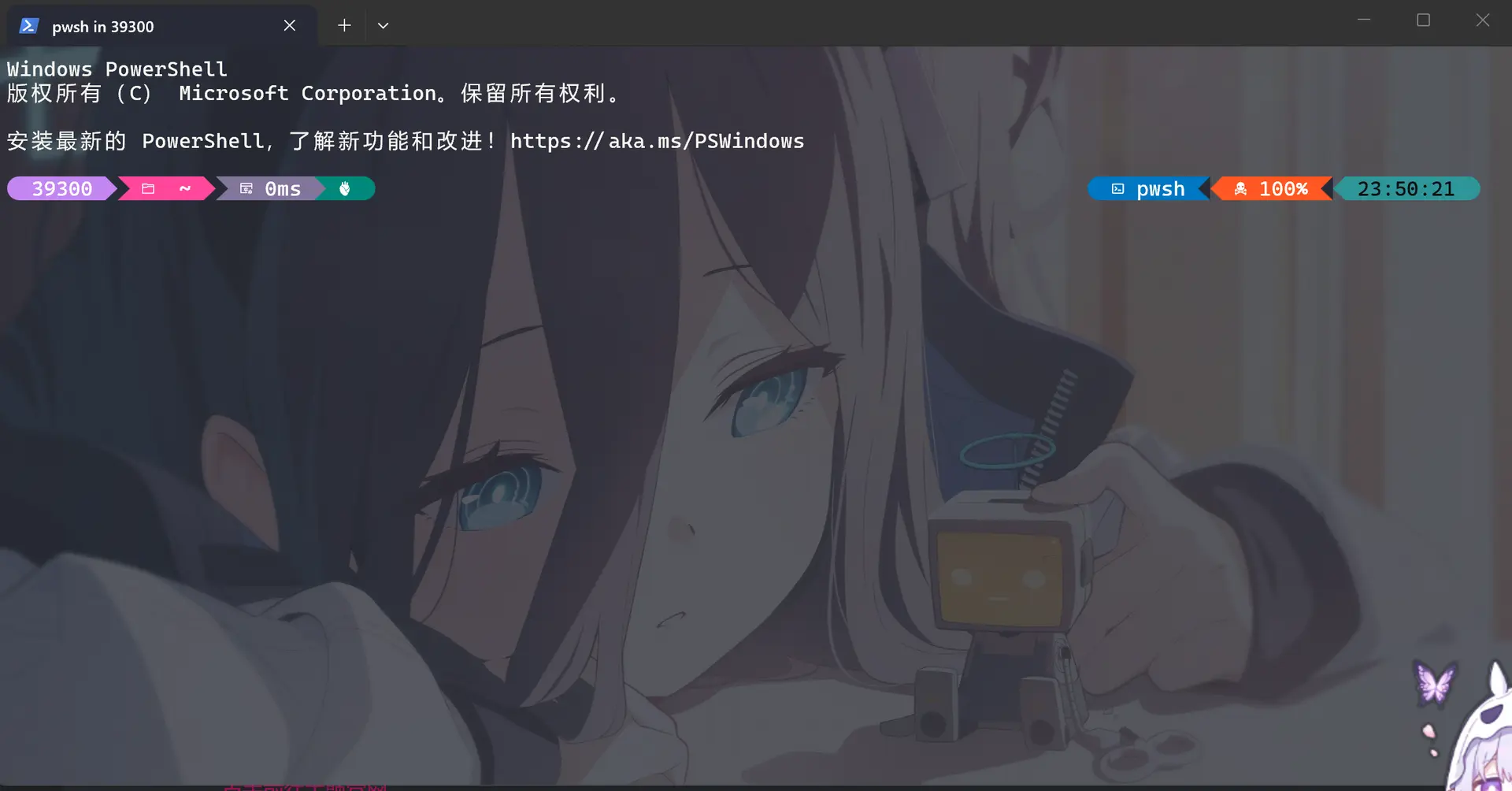
符号乱码问题
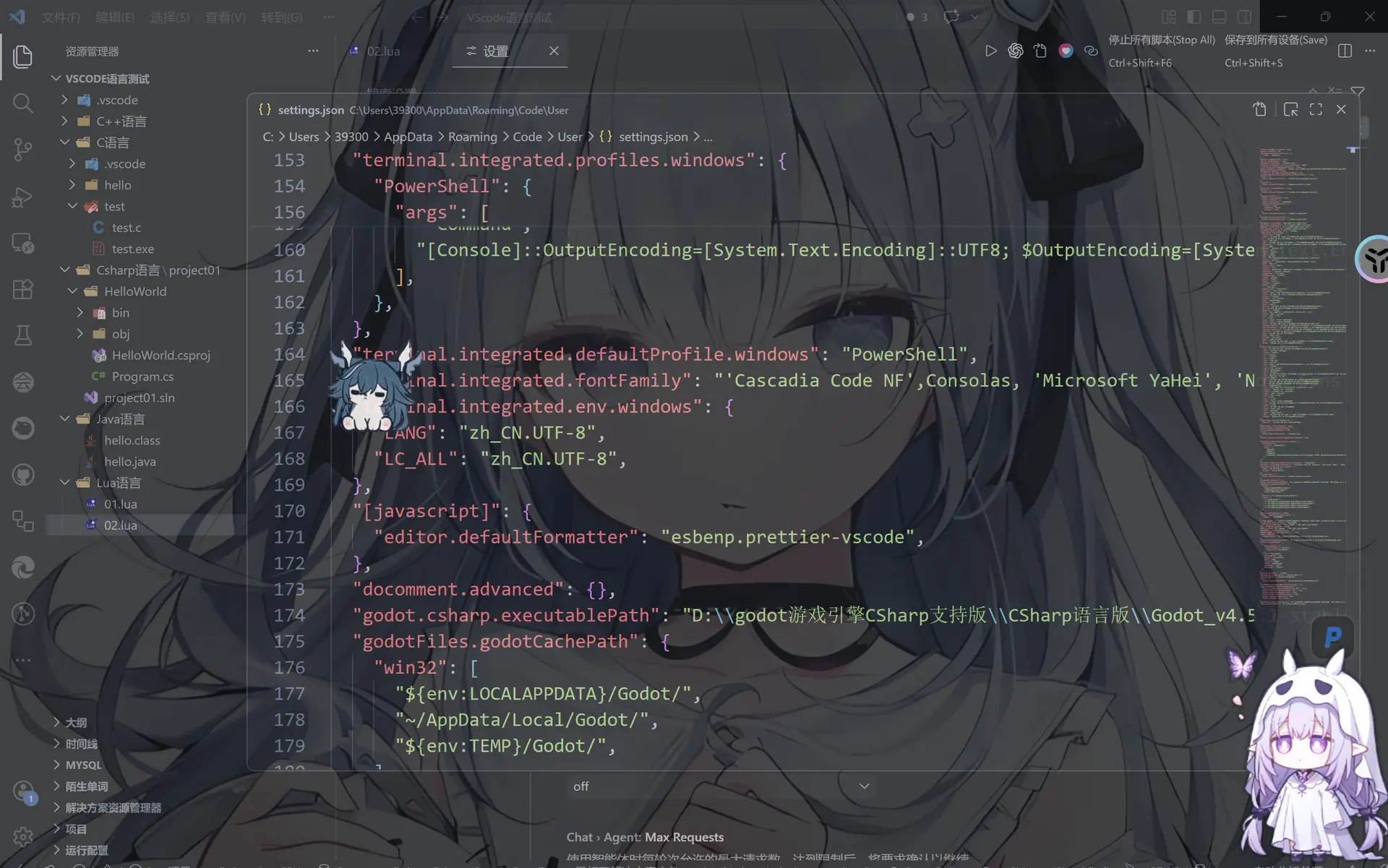
然后你会遇到一个问题就是在VScode和cursor还有trae里的终端上的oh my push主题的符号都是乱码,这个是因为我们没有告诉编译器我们要用什么字体
在VS code以及那两个的编辑器的settings.json的terminal.integrated.defaultProfile.windows里添加这些,分别为: 字体首选Cascadia Code NF,终端输出支持中文避免乱码,和光标闪烁+线条性(取代默认的block样式,那个很难看的)
"terminal.integrated.defaultProfile.windows": "PowerShell",
  "terminal.integrated.fontFamily": "'Cascadia Code NF',Consolas, 'Microsoft YaHei', 'Noto Sans CJK SC'",
  "terminal.integrated.env.windows": {
    "LANG": "zh_CN.UTF-8",
    "LC_ALL": "zh_CN.UTF-8",
  },
  "terminal.integrated.cursorBlinking": true,
  "terminal.integrated.cursorStyle": "line",
  },
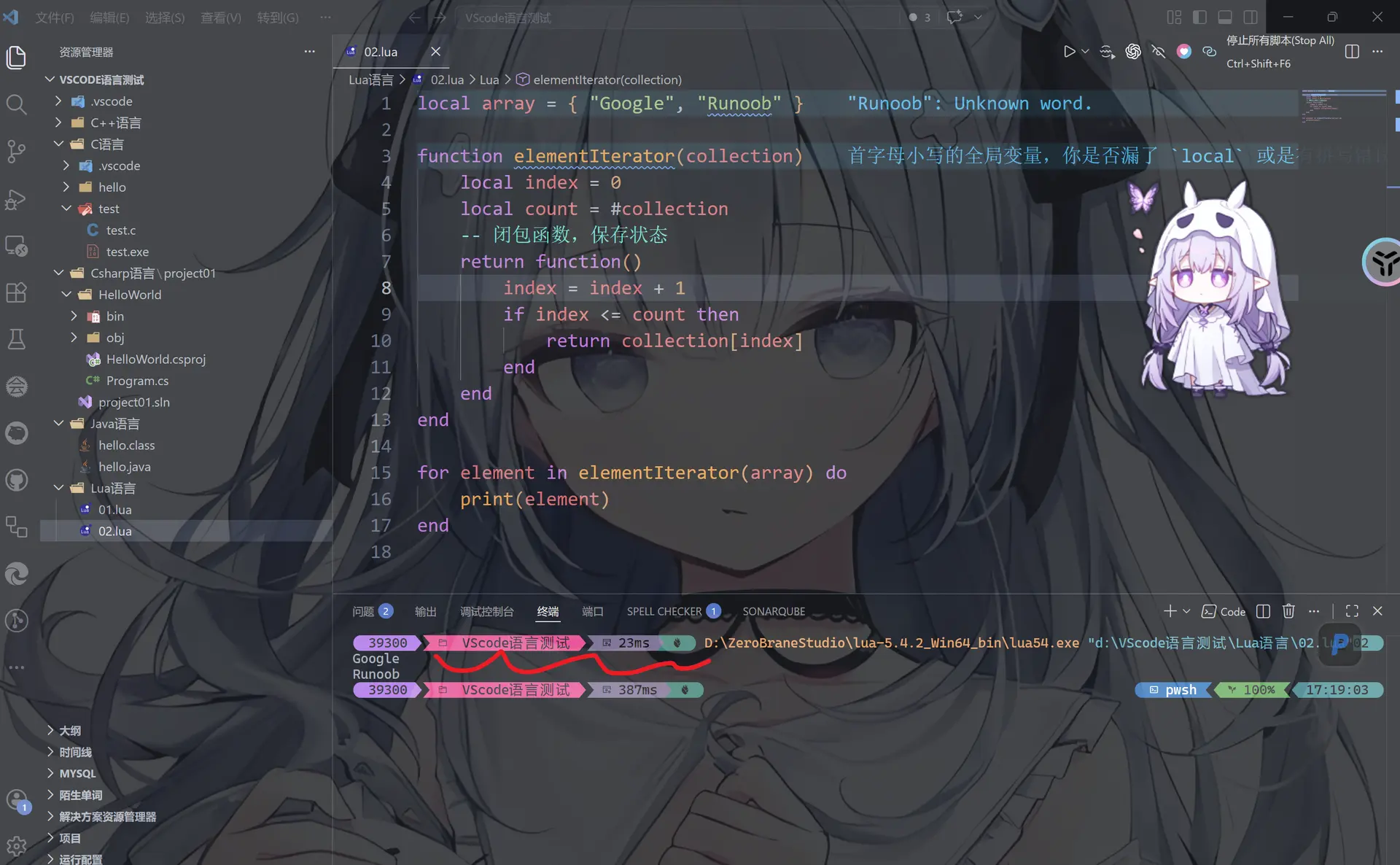
此时就可以看到正常了
Powershell 的智能终端预测PSReadLine
在安装时默认一般情况下默认就有这个插件了
这个对两个版本的powershell同样的有一点点区别
Set-PSReadLineOption -PredictionSource <选项>
作用: 定义预测内容的来源
| 参数 | 含义 |
|---|---|
None | 关闭预测 |
History | 仅根据历史命令预测 |
Plugin | 仅使用预测插件 |
HistoryAndPlugin | 同时使用历史记录和插件(只有powershell7+才有这个参数) |
Set-PSReadLineOption -PredictionViewStyle <选项>
作用: 负责预测结果的显示方式
| 参数 | 含义 |
|---|---|
InlineView | 当前行后显示灰色建议 |
ListView | 展开多条候选列表 |
Set-PSReadLineOption -HistorySearchCursorMovesToEnd
作用: 每次回溯输入历史,光标定位于输入内容末尾
对于powershell 5.1
我们在Microsoft.PowerShell_profile.ps1里添加如下内容
# 设置 PSReadLine 预测功能
Set-PSReadLineOption -PredictionSource History
Set-PSReadLineOption -PredictionViewStyle ListView
Set-PSReadLineOption -HistorySearchCursorMovesToEnd
对于powershell 7
我们Microsoft.PowerShell_profile.ps1里添加如下内容
#设置 PSReadLine 预测功能
Set-PSReadLineOption -PredictionSource HistoryAndPlugin
Set-PSReadLineOption -PredictionViewStyle ListView
Set-PSReadLineOption -HistorySearchCursorMovesToEnd
二者的区别如字面意思就是7的可以装插件
快捷键配置
同样的我们也可以添加一些快捷键
我们Microsoft.PowerShell_profile.ps1里添加如下内容
# Tab:菜单补全
Set-PSReadLineKeyHandler -Key Tab -Function MenuComplete

# 上下键:按当前输入搜索历史
Set-PSReadLineKeyHandler -Key UpArrow -Function HistorySearchBackward
Set-PSReadLineKeyHandler -Key DownArrow -Function HistorySearchForward

# Ctrl+Z:撤销当前命令行编辑
Set-PSReadLineKeyHandler -Key Ctrl+z -Function Undo
powershell 7插件安装
安装PSReadLine(默认)
一般情况下这个是下载powershell就自带了,不需要额外安装了
不过还是说一下吧
# 安装
Install-Module PSReadLine -Scope CurrentUser

# 更新
Update-Module PSReadLine
然后输入Y同意安装
Untrusted repository
You are installing the modules from an untrusted repository. If you trust this repository, change its
InstallationPolicy value by running the Set-PSRepository cmdlet. Are you sure you want to install the modules from
'PSGallery'?
[Y] 是(Y)  [A] 全是(A)  [N] 否(N)  [L] 全否(L)  [S] 暂停(S)  [?] 帮助 (默认值为“N”):Y
注意,如果你不想手动输入Y确认的话,只需要在Install-Module PSReadLine -Scope CurrentUser后面添加
-Force参数如Install-Module PSReadLine -Scope CurrentUser -Force
然后在Microsoft.PowerShell_profile.ps1里底部添加启用
Import-Module PSReadLine
安装CompletionPredictor
作用: 提供额外的命令预测候选,增强PSReadLine预测
我们打开powershell 7 执行如下命令安装
Install-Module CompletionPredictor -Scope CurrentUser
然后在Microsoft.PowerShell_profile.ps1里底部添加启用
Import-Module CompletionPredictor
在powershell 7输入Get-Module CompletionPredictor 后验证即可
安装Terminal-Icons
作用: 让
ls、Get-ChildItem的文件列表显示不同类型的图标,例如文件夹、代码文件、图片和压缩包
Install-Module Terminal-Icons -Scope CurrentUser
然后在Microsoft.PowerShell_profile.ps1里底部添加启用
Import-Module Terminal-Icons
安装PSFzf + fzf
作用: 可以模糊搜索历史命令、文件和路径。配置好之后,按
Ctrl+R可以快速搜索以前执行过的命令,Ctrl+T可以搜索文件
安装 fzf
winget install --id junegunn.fzf --exact
然后在 PowerShell 7 中安装模块
Install-Module PSFzf -Scope CurrentUser
然后在Microsoft.PowerShell_profile.ps1里底部添加启用
Import-Module PSFzf
安装zoxide
作用: 记住你常去的目录,之后不必反复输入很长的路径,可以用
z加目录名称的关键词快速跳转
这个并不是powershell插件,而是大多数终端都通用,包括powershell 5.1 和7+
winget install --id ajeetdsouza.zoxide --exact
然后在Microsoft.PowerShell_profile.ps1里底部添加启用
# Smart directory navigation
Invoke-Expression (& { zoxide init powershell | Out-String })
使用方法
z foo              # cd into highest ranked directory matching foo
z foo bar          # cd into highest ranked directory matching foo and bar
z foo /            # cd into a subdirectory starting with foo

z ~/foo            # z also works like a regular cd command
z foo/             # cd into relative path
z ..               # cd one level up
z -                # cd into previous directory

zi foo             # cd with interactive selection (using fzf)

z foo<SPACE><TAB>  # show interactive completions (bash 4.4+/fish/zsh only)
安装 ZLocation
作用: 记录访问过的目录,使用关键词快速跳转,和Zoxide差不多
我们安装的时候Zlocation和Zoxide二选一即可,二者功能和使用方法类似
或者我们可以在powershell 5.1用zoxide ,在7里用这个
Install-Module ZLocation -Scope CurrentUser
然后在Microsoft.PowerShell_profile.ps1里底部添加启用
Import-Module ZLocation
使用方法
C:\>z foo
C:\foo>z bar
C:\baz\bar> z -
C:\foo>z -
C:\>z -
C:\>#no-op
安装posh-git
作用: Git 命令补全,并可在提示符中显示分支、工作区状态
Install-Module posh-git -Scope CurrentUser
然后在Microsoft.PowerShell_profile.ps1里底部添加启用
Import-Module posh-git
插件安装和profile速览
如果你表示“小孩子才做选择,瓦达西全都要!”,没问题~
安装(前提是已经安装powershell 7并打开)
Install-Module PSReadLine -Scope CurrentUser -Force
Install-Module CompletionPredictor -Scope CurrentUser -Force
Install-Module Terminal-Icons -Scope CurrentUser -Force
Install-Module PSFzf -Scope CurrentUser -Force
winget install --id junegunn.fzf --exact
Install-Module ZLocation -Scope CurrentUser -Force
Install-Module posh-git -Scope CurrentUser -Force
winget install --id gerardog.gsudo --exact --source winget
winget install --id ajeetdsouza.zoxide --exact
profile配置文件
powershell 5.1
# 引入 Oh My Posh 并使用默认主题
oh-my-posh init pwsh --config "$env:POSH_THEMES_PATH\jandedobbeleer.omp.json" | Invoke-Expression

# 设置 PSReadLine 预测功能
Import-Module PSReadLine
Set-PSReadLineOption -PredictionSource History
Set-PSReadLineOption -PredictionViewStyle ListView
Set-PSReadLineOption -HistorySearchCursorMovesToEnd

# zoxide: 智能目录导航
Invoke-Expression (& { zoxide init powershell | Out-String })

# gsudo别名sudo
Set-Alias sudo gsudo

# 快捷键
# Tab: 菜单补全
# UpArrow: 向上搜索历史
# DownArrow: 向下搜索历史
# Ctrl+Z: 撤销当前命令行编辑
Set-PSReadLineKeyHandler -Key Tab -Function MenuComplete
Set-PSReadLineKeyHandler -Key UpArrow -Function HistorySearchBackward
Set-PSReadLineKeyHandler -Key DownArrow -Function HistorySearchForward
Set-PSReadLineKeyHandler -Key Ctrl+z -Function Undo
powershell 7
# 引入 Oh My Posh 并使用默认主题
oh-my-posh init pwsh --config "$env:POSH_THEMES_PATH\jandedobbeleer.omp.json" | Invoke-Expression

# 设置 PSReadLine + CompletionPredictor 预测功能
Import-Module PSReadLine
Import-Module CompletionPredictor
Set-PSReadLineOption -PredictionSource HistoryAndPlugin
Set-PSReadLineOption -PredictionViewStyle ListView
Set-PSReadLineOption -HistorySearchCursorMovesToEnd

# 快捷键
# Tab: 菜单补全
# UpArrow: 向上搜索历史
# DownArrow: 向下搜索历史
# Ctrl+Z: 撤销当前命令行编辑
Set-PSReadLineKeyHandler -Key Tab -Function MenuComplete
Set-PSReadLineKeyHandler -Key UpArrow -Function HistorySearchBackward
Set-PSReadLineKeyHandler -Key DownArrow -Function HistorySearchForward
Set-PSReadLineKeyHandler -Key Ctrl+z -Function Undo

# 文件列表图标
Import-Module Terminal-Icons

# 模糊搜索
Import-Module PSFzf

# Git提示
Import-Module posh-git

# zoxide: 智能目录导航(和ZLocation二选一)
# Invoke-Expression (& { zoxide init powershell | Out-String })

# ZLocation: 目录位置导航
Import-Module ZLocation

# gsudo别名sudo
Set-Alias sudo gsudo